
USB-C
The connector shape does not tell you whether video is supported. Confirm native video output, the adapter or dock, and the computer’s independent-display limit.
THE STEETEK KVM CONNECTION CENTER
Make Every Connection Simple.
Share your monitors, keyboard and mouse between computers. Find your setup, follow the cables, or get help with a connection.
Single monitor · Dual monitor · HDMI · DisplayPort · USB-C guidance
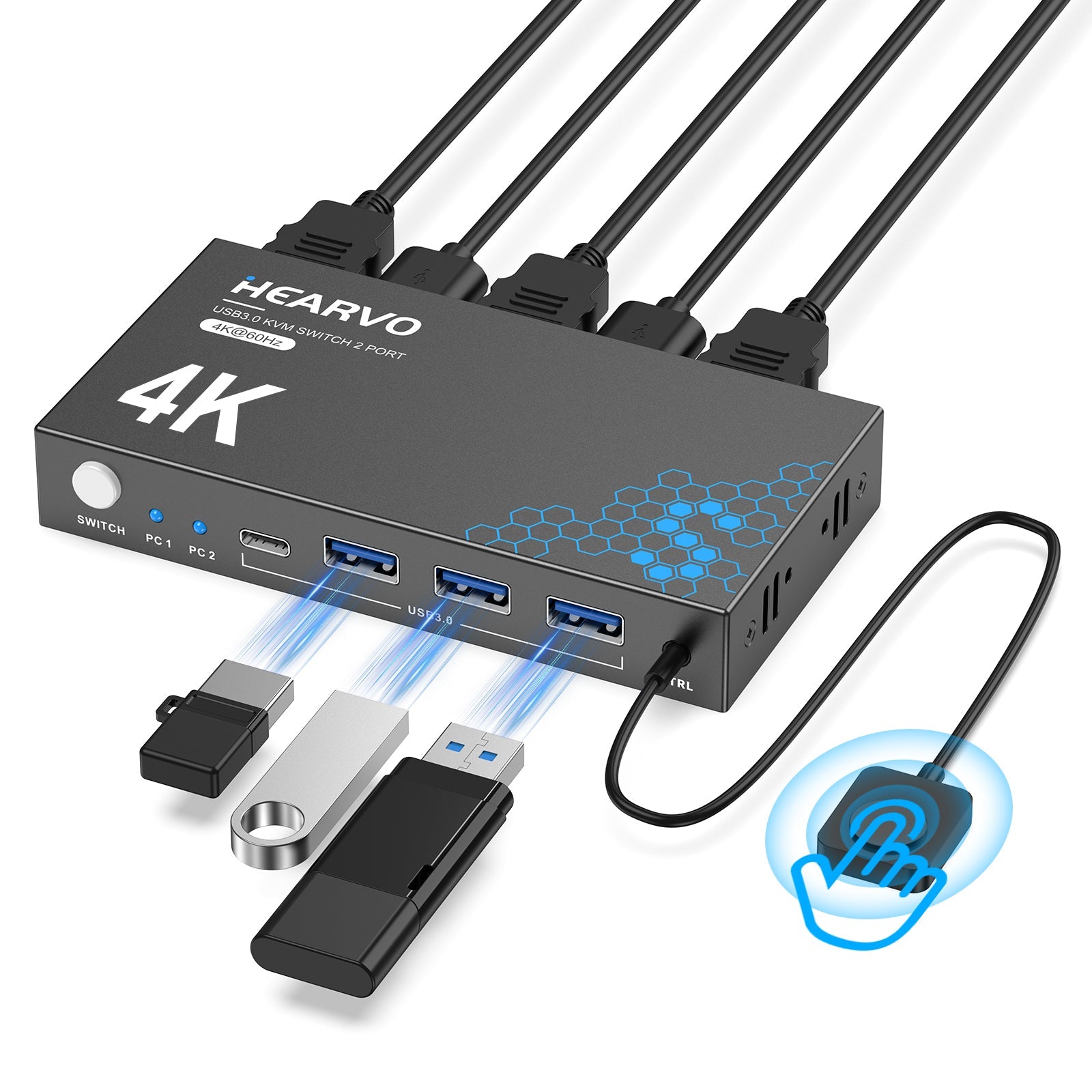
One screen. Shared simply.
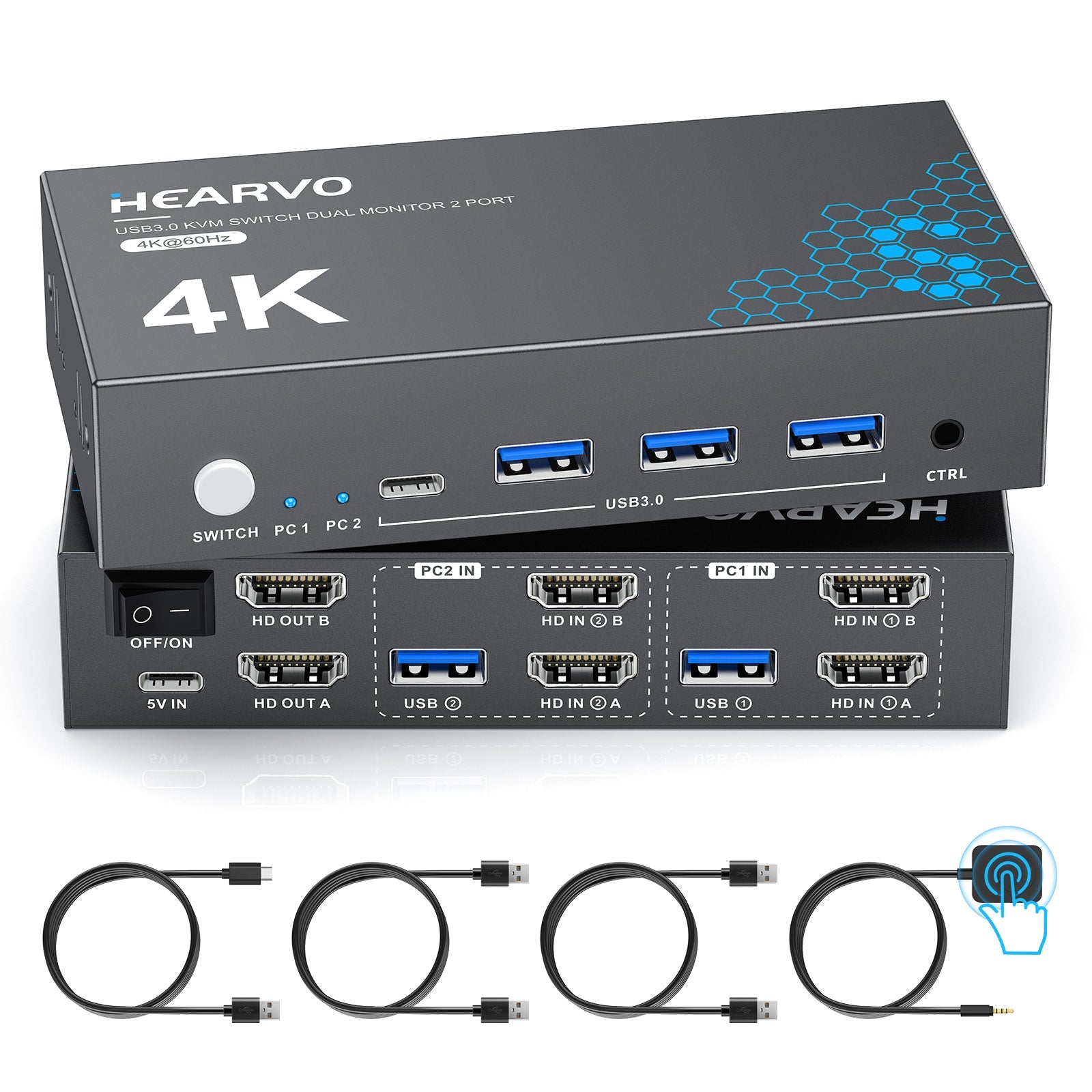
Two screens. Separate video paths.
The connection rule
01 / START WITH YOUR SETUP
Start with your screens and connections.
A layout match still needs a hardware compatibility check.
Start with the screens you want to share.
Match the KVM inputs and monitor outputs. USB-C sources may need video adapters.
Confirm the computer side of the connection.
A KVM does not create extra graphics outputs. Check the exact computer, dock, operating system and display mode. A splitter that duplicates one image is not an independent second display.
Test the required independent displays directly and plan each computer’s USB link.
Results compare port layouts in the current range. They do not certify a computer, dock, adapter, refresh rate or peripheral.
02 / CHOOSE YOUR CONNECTION GUIDE
Already own a KVM? Choose its exact model.
Then follow its connection layout below.
A / B / C below are guide labels for separate video channels. Match the printed input/output labels on your actual unit. Never mix one computer’s video cables with another computer’s USB link.
THE BASIC CONNECTION COUNT
| Device | Video connections | USB data links |
|---|
Follow the exact model’s power instructions.
03 / UNDERSTAND THE PORTS
Check one computer-to-KVM video path at a time.
Then repeat for every required screen.
The connector shape does not tell you whether video is supported. Confirm native video output, the adapter or dock, and the computer’s independent-display limit.
A video/audio path. HDMI does not carry the KVM’s shared keyboard and mouse USB data link. Match the chosen video format across the whole signal chain.
A video/audio path. A DP-source-to-HDMI adapter is not the same as an HDMI-source-to-DP converter. Check direction, mode support and any required power.
Keep the computer’s separate USB data connection to its matching PC input group. A USB-C shared-device or power port on these KVMs is not a USB-C video input.
USB-C docks and adapters must provide the required independent video paths for your exact computer and operating system. A dock with two sockets does not by itself prove two independent desktops. For a Mac, check the exact model and chip’s display specifications.
04 / CONNECT ONE STEP AT A TIME
Guide for the selected model.
Check the box to continue.
This completes the learning guide. It does not detect or verify your actual hardware.
05 / SEE WHY EACH LINK MATTERS
Try switching computers, then remove a video or USB link.
Illustration only — no live device detection.
Switch controls illustrate the selected computer. Use the controls documented for your model. Actual signal reacquisition takes time.
PC 1 / CONNECTIONS IN THIS ILLUSTRATION
06 / FIND THE NEXT USEFUL CHECK
Check one variable at a time.
These steps help isolate a problem; they do not diagnose a defective unit.
Have your KVM model, computer and monitor models, cable/adapter details, chosen resolution, and a clear rear-connection photo ready. Include what happens when you bypass the KVM.
Contact STEETEK support ↗The summary contains only your selected technical setup and check answers. This page does not send it to support.
07 / BEFORE YOU CHOOSE
The right model starts with the computer and monitor capabilities you already have.
Explore the complete KVM range ↗No. Every computer must provide one independent video path for each shared screen, through native outputs or a verified compatible dock/adapter setup. A simple HDMI splitter duplicates a signal. It does not produce two independent desktops.
No. Check what that exact port supports. Computer-side native video may require DisplayPort Alt Mode or a suitable Thunderbolt/USB4 implementation. A KVM’s USB-C peripheral or power socket is not a native video input for the HDMI/DP models shown here. USB data, video conversion and power are separate requirements.
No. Check the signal direction from source to KVM input, or from KVM output to monitor. HDMI-source-to-DP conversion normally needs a suitable active converter and its specified power. A DP-source-to-HDMI adapter has a different direction and may have active/passive requirements. Verify each adapter and video mode with its manufacturer.
Support depends on the exact computer/chip, operating system, dock technology and selected resolutions. Test the intended independent screens without the KVM first. Do not infer support from connector count. Check your computer and dock manufacturer’s specifications, including whether a dock uses MST, Thunderbolt or USB graphics and any driver requirements.
Apple’s model-specific display guidance ↗Check each PC’s USB data cable and matching input group. HDMI and DP carry the picture; the shared USB devices use the selected computer’s USB link. Direct Bluetooth pairing bypasses the KVM. Test a basic wired keyboard and mouse, then swap one USB cable or PC input group at a time.
No. The supported mode depends on the exact model, computer/GPU, monitor, cable rating, adapters and other signal requirements. Start with a mode supported by every device, then raise it gradually. Check product specifications for the precise resolution, refresh rate and format combination; labels across the series are not interchangeable.
If the checks do not resolve the issue, contact support with your model and connection photo, direct-test results, cables/adapters and affected input/output. These details help distinguish a connection or compatibility issue from a hardware fault and support the appropriate next step under the store’s policies.
THE RIGHT FIT. THE CLEARER CONNECTION.
Make Every Connection Simple.